
Windows photobooth software for your events
YOUR PHOTOBOOTH. YOUR WORKFLOW.
Run your photo booth with FotoboxShop24 Studio. Create an event, design the guest screen and photo layout, then capture and print with your compatible equipment. Studio is a standalone Windows application for booth operators, rental businesses and event venues.
Looking for photobooth software for your business in the UK, the USA or another country? Start with the demo on your own Windows setup and discuss your camera, printer and intended use with us before buying a licence.
Windows 10/11, 64-bit · one licence per booth · optional Cloud Credits
Try Studio for 30 days from the first demo activation. The demo includes watermarks and a separate allowance of 100 demo uploads. These uploads are separate from paid Cloud Credits. Request your personal download link on the existing download page; requesting a link does not create an account or start the demo.
01 / CREATE
Prepare your event and photo layout
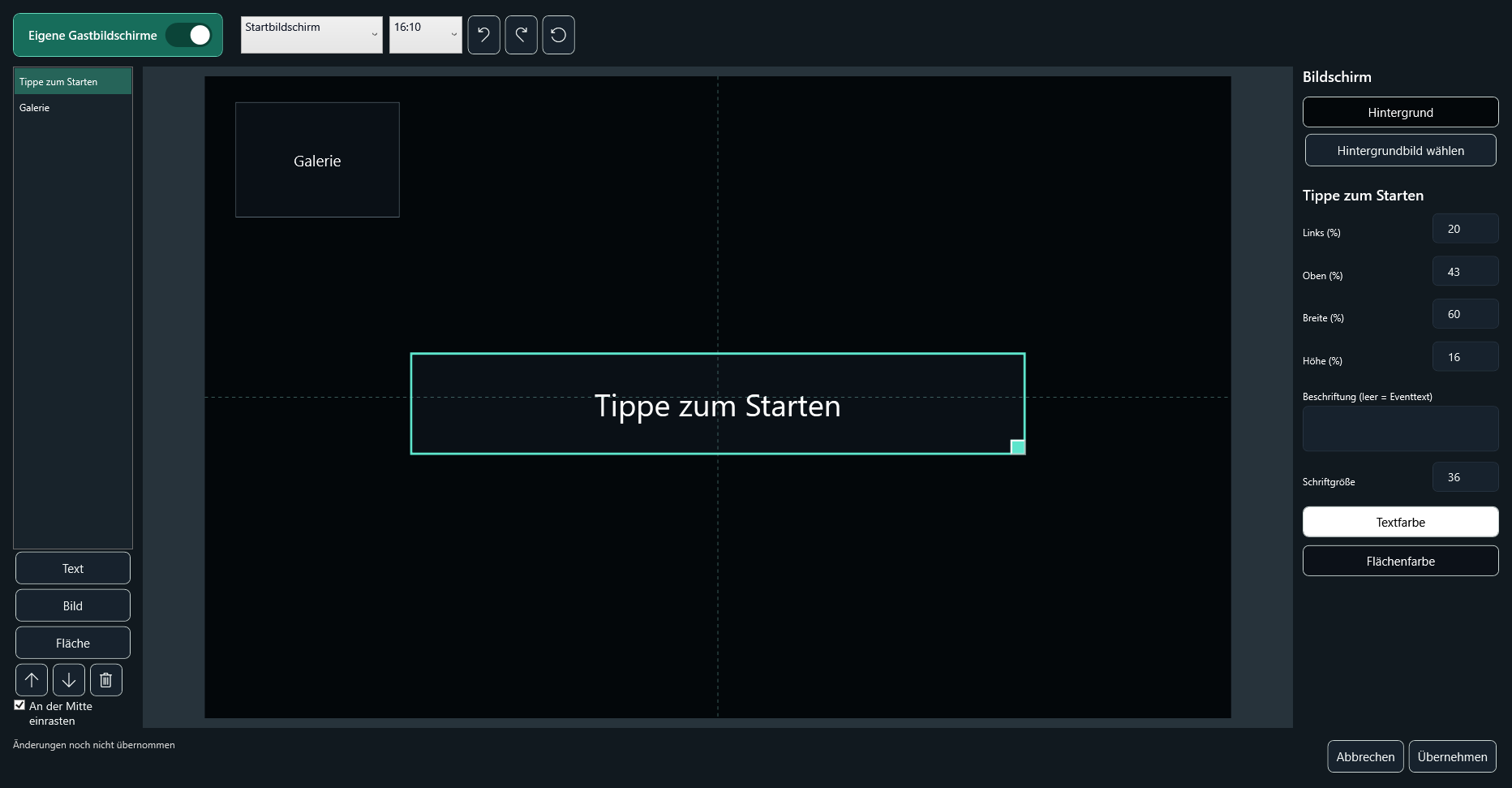
Set up separate events and prepare templates, media and settings. The template editor combines photo fields, text, logos and layers. Configure the guest workflow to suit the event, from the start screen to capture, optional filters and the finished result.
Use the gallery and USB export to work with recorded images. Before an event, test the complete workflow with your equipment, including the actual print if you offer printing.
02 / WORK LOCALLY
Capture and print after the initial online activation
The initial activation needs an internet connection. The activated full version can then be used locally offline for photography and printing. A working local photo workflow does not require a permanent internet connection at the venue.
Online sharing is separate. Cloud QR needs internet access, the configured service and credit balance. Local QR downloads require the phone and booth to be on the same reachable network, with the appropriate firewall settings.
03 / LICENCE & CREDITS
One perpetual licence for one photobooth
The separately sold Studio licence is for one active booth and currently includes 10,000 starting credits. Several separately licensed booths can belong to the same customer account and share its Cloud Credit balance. Local capture and printing do not consume Cloud Credits.
A successful Cloud QR upload currently costs 2 credits. The photo link is a temporary download, valid for about five minutes from upload, rather than a permanent photo archive. Additional credits and current licence prices are listed in the software shop.
04 / COMPATIBILITY
Check the camera, printer and Windows setup
Studio is designed for 64-bit Windows 10 or Windows 11. Camera support depends on the exact model and connection. Printing requires a suitable Windows printer driver and a configured print profile. Send us the model names and your Windows version so we can discuss the setup.
The standalone software licence is intended for an existing booth. A new photobooth or photo mirror from FotoboxShop24 includes a Studio licence with 10,000 starting credits.
05 / LANGUAGES
Choose the guest experience and get help
Studio manuals are available in German, English, French, Italian and Spanish. This English page explains Studio for international visitors. Check the available language settings during your demo so that the operator and guest workflows suit your event.
Telephone support is available in German and English. You can contact us by email in your own language. The existing support and setup pages provide further guidance.
06 / GET READY
From installation to a complete test
Request the personal download link, download the ZIP archive and extract it completely before starting the setup. Then sign in or register in Studio and prepare a test event. A download alone does not activate a licence.
Check the camera preview, photo layout, guest workflow and output with the equipment you will use. Allow time to resolve driver, connection or print-profile questions before the first event.
Questions before choosing photobooth software
Can I use Studio without internet at the event?
After initial online activation, the activated full version supports local photography and printing offline. Activation, device changes and online services need internet. A local QR download has its own network and firewall requirements.
Do I need a monthly subscription for local use?
The Studio booth licence is sold as a perpetual licence, with no recurring local licence fee. Optional online actions can consume Cloud Credits. Check the current product description for the licence and credit package you choose.
Where can I find the current download?
Use the existing Studio download page to request a personal link. The same route provides the currently approved installation package for a demo or an existing licence. Read the update instructions before updating an existing booth.
Try Studio with your own equipment
Explore the demo, then choose the Studio licence or ask us about your planned setup. You can keep using the same download, account and support routes.
Request the Studio demo View the Studio licence Discuss your setup