
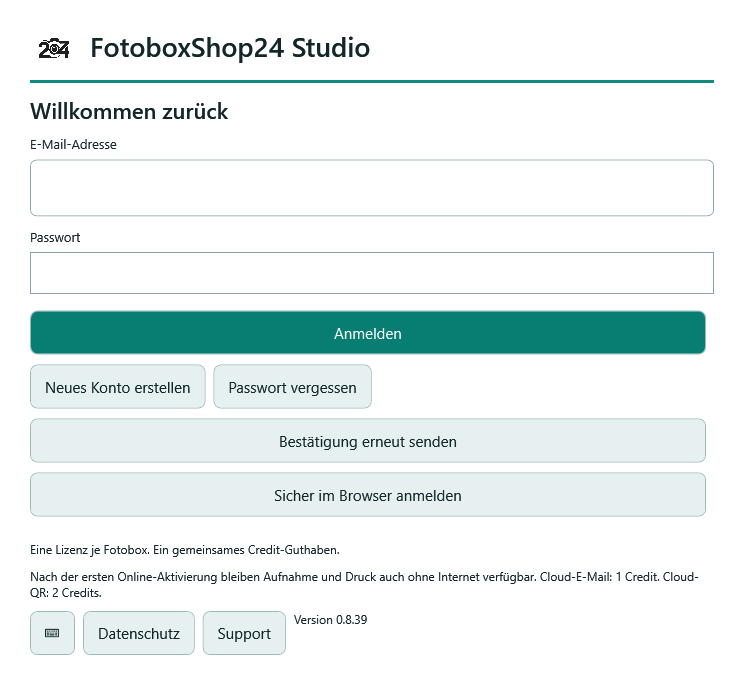
01 / ACCOUNT & LICENCE
Set up a customer account and new photo booth
Register your account, confirm your email address and assign an available licence or the agreed one-time code to the booth. The guide also explains browser sign-in and a controlled device change. Set up account and licence →02 / PREPARE AN EVENT
Design events, templates and guest screens
Create a test event, edit print templates with layers and your own media, and check favourites. Design the guest screen independently of the printed layout and test the complete sequence. Design events and templates →03 / CAPTURE & PRINT
Set up camera and photo printing
Connect your camera, check exposure and lead-in time, and configure separate print profiles. An actual test photo and test prints show whether focus, flash and cutting work together in your setup. Set up camera and printing →04 / IMAGES & OPERATION
Organise media, gallery and event operation
Prepare still images, videos and filters. Set guest permissions deliberately and check USB export, secondary backup and slideshow. Local files, backups and temporary QR shares remain separate things. Organise media and event operation →Gezielte Hilfe statt unkontrolliertem Neustart
Am Gastbildschirm führt Problem melden zu Hinweisen für Kamera, Drucker und Bedienung. Die Verbindungsprüfung und bestätigte Neustartaktionen sind erreichbar, ohne den Adminbereich zu öffnen. Laufende Aufnahmen und unklare Druckaufträge werden berücksichtigt; unklare Druckaufträge werden nicht automatisch erneut gedruckt.
Bei Problemen während der Installation helfen der angezeigte Einrichtungsschritt, der Fehlercode und der exportierbare, datensparsame Diagnosebericht. Teile uns mit, was unmittelbar vor der Störung passiert ist, damit wir den Fehler gezielt einordnen können.
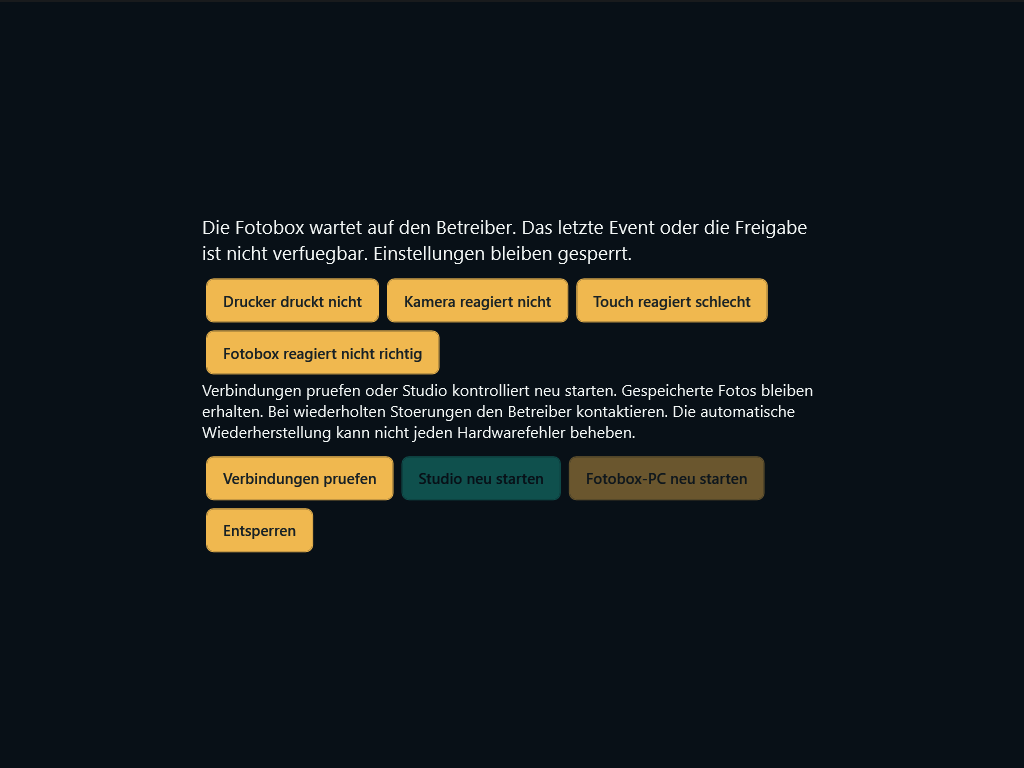
Wann Unterstützung nötig ist: Wiederanlaufversuche sind begrenzt. Fehlende oder beschädigte Wiederherstellungsdaten, wiederkehrende Fehler und Hardwaredefekte erfordern den Betreiber oder Support. Ein vollständig defekter Touchscreen lässt sich nicht per Touch-Menü reparieren. Nach einem Windows-Neustart müssen Windows starten und ein Benutzer angemeldet sein; das Einschalten nach Stromausfall ist eine BIOS-/Hardwareoption.
Wiederanlauf und Gasthilfe im Detail · Supportanfrage senden
Where do I start with a problem?
The booth is not set up yet
First check System requirements and initial setup. Have your Windows version and exact camera and printer models ready.QR sharing or credit is unclear
The explanation of cloud credits and QR photo downloads distinguishes local features, available credit and time-limited links.An error persists
Note the version, time, selected event, device models and exact error message. Describe what you expected and what actually happened. Do not include passwords, licence codes or guest photos.GET PERSONAL HELP
Check your setup together
Stuck with the guide, or want to use Studio on an existing booth? Contact us with the technical details. The software overview explains features, the perpetual licence and purchasing options.View Studio perpetual licence Ask a support question
Or write to info@fotoboxshop24.de.