
1. Create your own event
- Open Events & statistics and select New.
- Add the event name, customer or organiser, date and location. Check the selected event before changing settings.
- Select a print template and check capture, print and sharing settings for this event.
2. Create a print template or import it as a ZIP
- Open Templates. Use New a blank template or use New template > Choose standard layout an initial design.
- Lege Format und Ausrichtung fest: beispielsweise 4×6 im Hoch- oder Querformat oder einen 2×6-Fotostreifen.
- For an existing template, use Import ZIP. Then check image fields, layers and missing media.
- Choose a unique name. Save your work using Export ZIP, before trying major changes.
3. Build photos, text fields and layers
- Use Add element > Image file for a logo or background. Studio copies the file locally; still back up your original files.
- Initially keep the aspect ratio locked when enlarging. Without the lock, the image is cropped centrally, not stretched.
- Arrange layers so that graphics do not obscure text and photo fields. Insert text placeholder offers EventName, Date, ClientName and Location, among others.
- The tool's bin removes selected, unlocked elements; Undo restores them.
4. Set up favourites and design the guest screen
- Mark desired templates with the star in the library. If several templates are favourites, guests choose before capture.
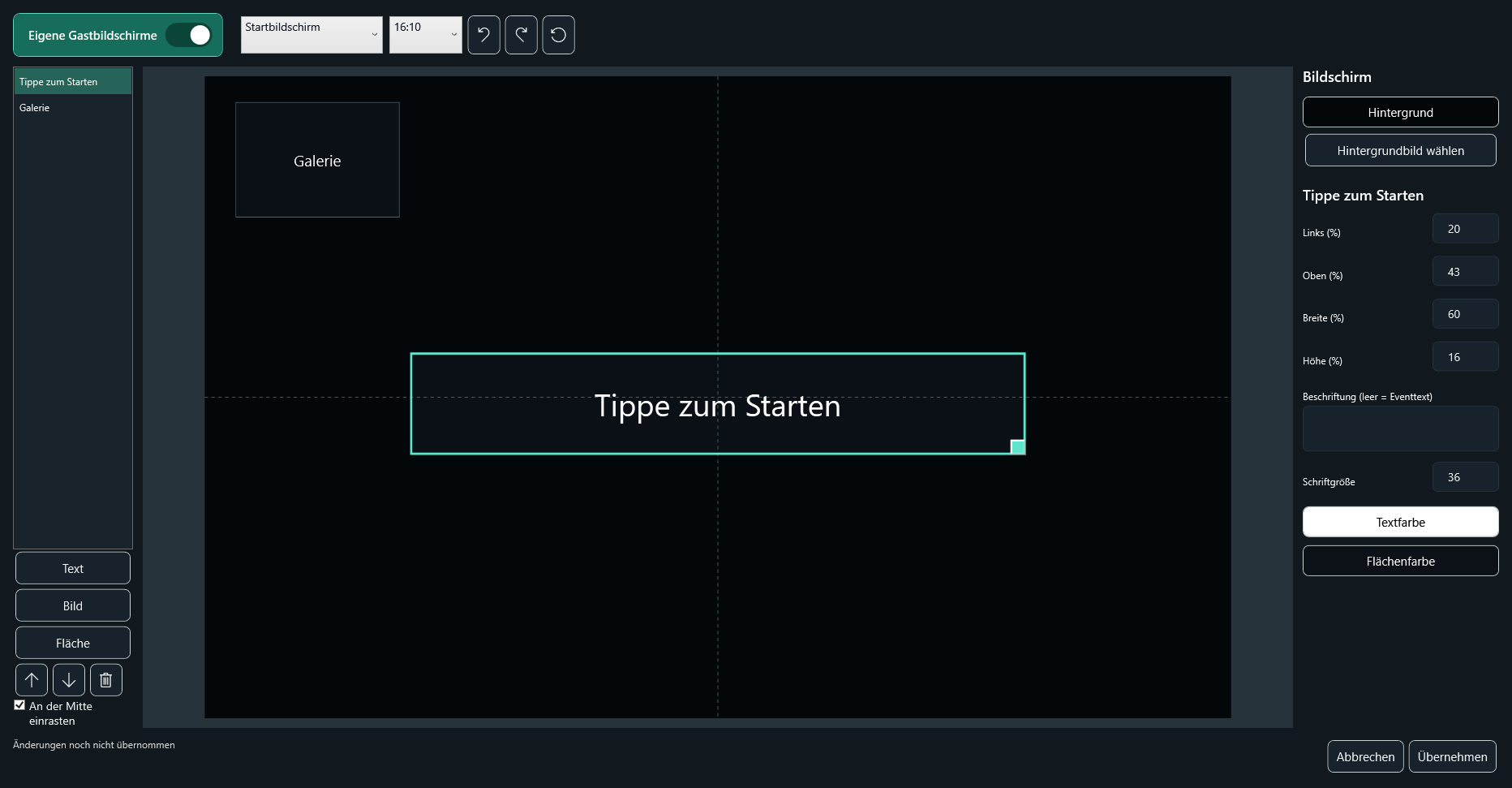
- On the left, open under Templates the item Design guest screen.
- Edit Start, Capture and Result separately. Move elements or resize them using a corner handle. Check contrast and controls in the format selector.
- Select Apply, to save the design for this event.
5. Run a complete trial
- Check under Capture photo count, countdown and result duration.
- In admin mode, start a complete session with the intended template. Check photo order, text placeholders, cropping, filter selection and the return to the start screen.
- Drucke das Ergebnis am eingesetzten Drucker. Prüfe bei 2×6 auch den tatsächlichen Schnitt.
- Check the admin PIN under Settings > Guest & kiosk and lock live operation only after a successful test.
Keep the design clear for guests
Use readable fonts, clear contrasts and sufficiently large controls. Check the view directly on your booth's touchscreen. A short test with someone unfamiliar with the sequence often reveals unclear labels or hidden buttons.Wiederanlauf und Hilfe im Gastbetrieb
Beim Eintritt in den Gastmodus speichert Studio den gesperrten Zustand und das letzte Event. Nach einem unerwarteten Studio-Abbruch kehrt es im Vollbild zu diesem Event zurück. Nach einem Windows-Neustart erfolgt dies beim Windows-Benutzerstart. Beendest du Studio regulär im entsperrten Adminbereich, endet diese Wiederherstellung.
Was Gäste selbst tun können
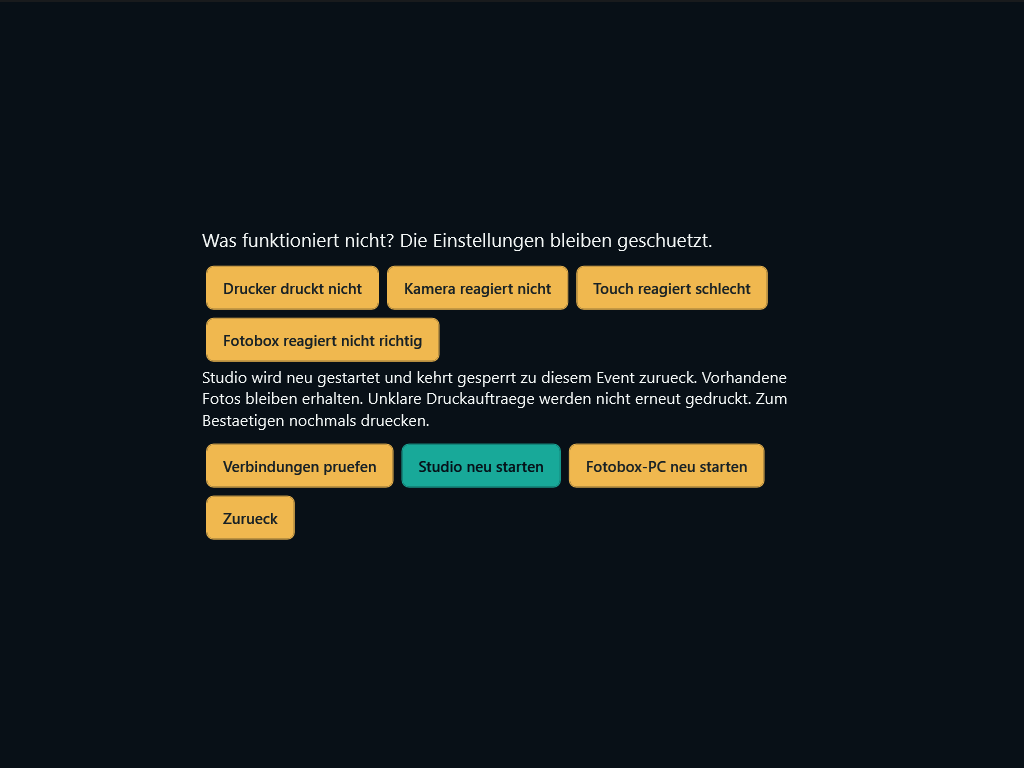
Über Problem melden wählen Gäste Hinweise zu Kamera, Drucker oder Bedienung, prüfen Verbindungen und fordern bei Bedarf einen kontrollierten Studio- oder Windows-Neustart mit Bestätigung an. Bei laufenden Aufnahmen oder unklaren Druckaufträgen erfolgt kein blinder Neustart. Unklare Druckaufträge werden nicht automatisch erneut ausgegeben.
Welche Voraussetzungen gelten
Windows muss erfolgreich starten und ein Benutzer muss angemeldet sein. Automatisches Einschalten nach Stromausfall ist eine BIOS-/Hardwareeinstellung und keine Studio-Funktion. Ein vollständig ausgefallener Touchscreen lässt sich nicht über das Touch-Hilfemenü reparieren.
Wiederanlaufversuche sind begrenzt. Sind Event- oder Wiederherstellungsdaten nicht verfügbar oder beschädigt, bleibt Studio in einer gesperrten Supportansicht. Bei anhaltenden Fehlern oder Hardwareproblemen hilft der Betreiber beziehungsweise der Studio-Support.