
FotoboxShop24 Studio: set up an account and photo booth licence
📄 Your Studio manual in five languages
Version 0.8.47 · 48 pages each Step by step through setup, camera, photo printing, templates, guest screen and event operation – including checking the live image framing. Deutsch · PDFEnglish · PDFFrançais · PDFItaliano · PDFEspañol · PDFThe PDFs open in a new tab and can be saved for offline reading. The software, built-in help and manual are available in German, English, French, Italian and Spanish. Telephone support is available in German and English, and email support in all languages.
What's new? View update history →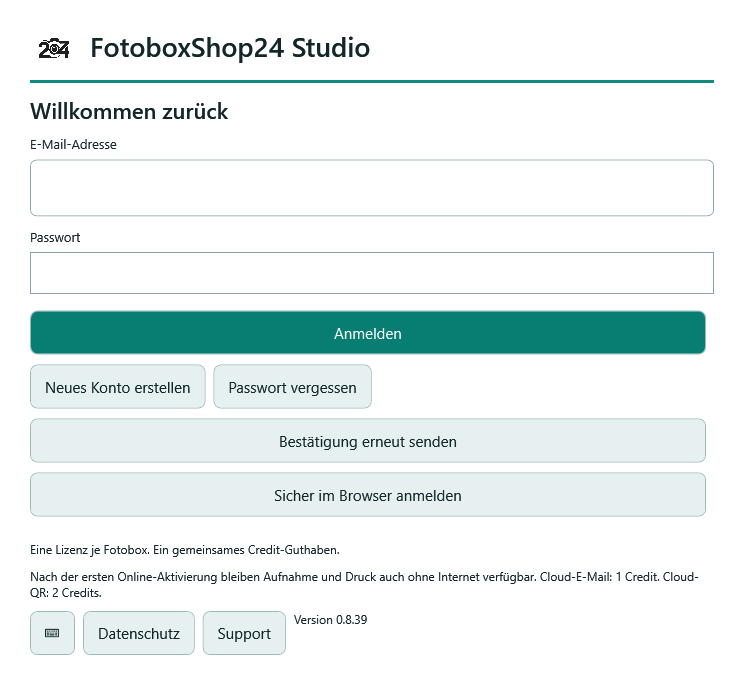
1. Create a customer account and confirm your email
- In the Studio sign-in window, select Create new account.
- Enter Name / company, your email address and a password of at least twelve characters. Read the privacy information and tick the corresponding box.
- Select Create account and open the confirmation link in the email. Email confirmation uses a link, not a numerical code.
- Return to sign-in. If the message is missing, check the address and spam folder. Enter your credentials and use Resend confirmation.
Result: Your confirmed account is ready for sign-in. If no message arrives, contact us. Never send your password or a confirmation link.
2. Assign this photo booth to a licence
- Sign in with your email address and password using Sign in .
- Check under Unlock this photo booth the field Name of this photo booth. Use a unique name, especially with multiple devices.
- Choose an available licence. Only if you have received a one-time licence code should you select that option and enter it in the designated field.
- Select Activate photo booth and open Studio.
Result: The licence is assigned to this booth. Not every purchase provides a separate code: a paid order can assign the licence directly to the account. For invoices or advance payment, receipt of payment must be expressly confirmed. If the licence is still missing afterwards, use Refresh or contact us with your order number.
3. Use browser sign-in as an alternative
- In the sign-in window, select Sign in securely in the browser. Also use this method when an administrator browser login is required.
- Sign in in the shop browser that opens. Confirm only the connection to your photo booth that you initiated and assign an available licence or a one-time licence code.
- Return to Studio and wait for confirmed activation.
Studio saves the device sign-in in Windows, not your shop password. The connection code is time-limited and different from the email confirmation link. If browser authorisation has expired, start it again. Do not share the connection code.
4. Change devices carefully
- Stop guest operation on the previous booth and connect it to the internet.
- Open My account and select Sign out this photo booth. Read the notice and confirm sign-out. Studio then closes; local events and photos are retained.
- Check that your licence has been released, and only then activate the new booth. Under My account > Manage devices to review signed-in photo booths.
Each licence is assigned to one actively connected booth. Where possible, sign out the previous device online in Studio and wait for confirmed licence release. With remote sign-out, its assignment may remain reserved until device confirmation or the remaining offline authorisation ends.
5. Check account and local operation
- Check in My account the connected booth, available licences and Available credits. Use Refresh to check the current status.
- After successful online activation, carry out a local capture and print test. The licence must be confirmed online at least every 30 days.
Local capture and printing do not use cloud credits. Multiple licensed booths belonging to you share the same account balance. If a connection message appears, displayed account values may be out of date; check them again online.
Before the first event
First complete all steps in a test event. Check the entire guest sequence with your own camera, printer and planned media. Keep the version number and device models ready for questions.
Frequently asked questions
Do I have to sign in again on every start?
After successful activation, the device sign-in is saved. Normal local operation does not require a new password entry on every start. After signing out or changing devices, online activation is required again. Confirm the licence online at least every 30 days.
Does a licence automatically mean a credit subscription?
No. Credits are credit you can top up, not a monthly subscription. A booth licence and cloud credit serve different purposes.
Check your setup together
Stuck at a step? Describe your setup and the exact error message. Do not send passwords, authorisation codes or private guest photos.
Request help Studio and credits in the shop
Or by email: info@fotoboxshop24.de
Further help and information
All Studio guides · Software and features · Cloud credits and QR photo downloads